MemOS Memory Management
MemOS Memory Management Assistant
Introduction
MemOS Memory Management is a powerful plugin that allows users to access the memory addition and search functions of MemOS. It can store and retrieve conversation content, providing users with efficient memory management services to help improve the consistency and personalization of user-AI conversations.
Links
- MemOS Official Website: https://memos.openmem.net
- MemOS Github: https://github.com/MemTensor/MemOS
Tool Introduction
search_memory: This tool is used to query users' memory data and can return the most relevant fragments to the input. It supports real-time memory retrieval during user-AI conversations and global searches across the entire memory. It can be used to create user profiles or support personalized recommendations. When querying, parameters such as conversation ID, user ID, and query text need to be provided, and the number of memory items to return can also be set.add_message: This tool can batch import one or more messages into the MemOS memory storage database, facilitating retrieval in future conversations, thereby supporting chat history management, user behavior tracking, and personalized interactions. When using it, information such as conversation ID, message content, sender role, conversation time, and user ID needs to be specified.get_message: This tool is used to obtain the historical conversation records between the user and the assistant for a specified session, and can return results with a quantity limit.
Usage
Configuration
{
  "mcpServers": {
    "memos-api-mcp": {
      "timeout": 60,
      "type": "stdio",
      "command": "npx",
      "args": [
        "-y",
        "@memtensor/memos-api-mcp"
      ],
      "env": {
        "MEMOS_API_KEY": "mpg-xxxxxxxxxxxxxxxxxxxxxxxxxxxxx",
        "MEMOS_USER_ID": "your-user-id",
        "MEMOS_CHANNEL": "MCPSO"
      }
    }
  }
}
How to obtain environment variables:
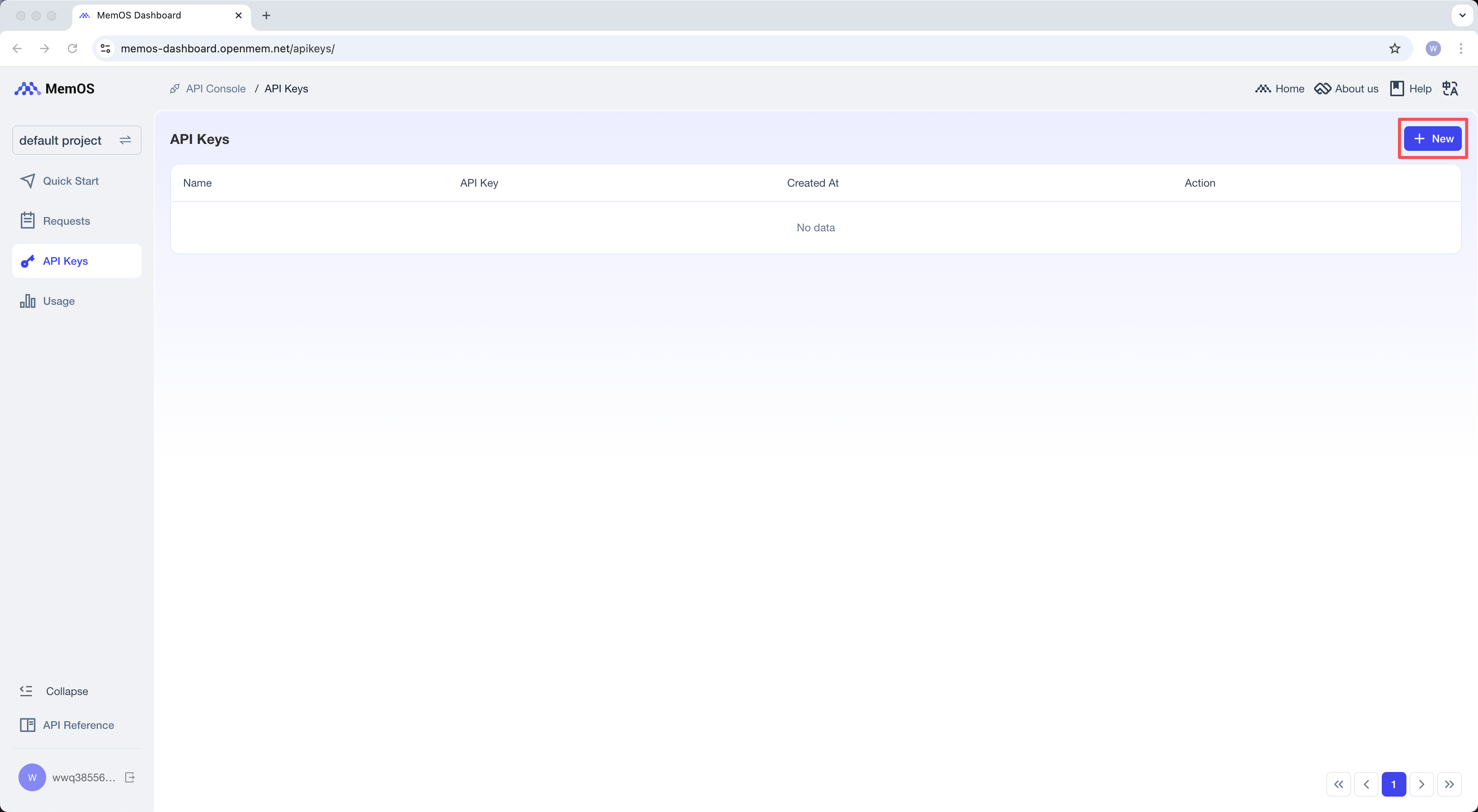
MEMOS_API_KEY: Register an account on the MemOS official website's API Console, then create a new api-key on the API keys page and copy it here.
-
MEMOS_USER_ID: A deterministic user-defined personal identifier.- For the same user, this environment variable needs to remain consistent across different devices/clients;
- Please do not use random values, device IDs, or chat session IDs as user identifiers;
- Recommended: Use personal email address, full name, or employee ID as the user identifier.
-
MEMOS_CHANNEL: No need for details —MCPSOwill do.
Using in Claude Desktop
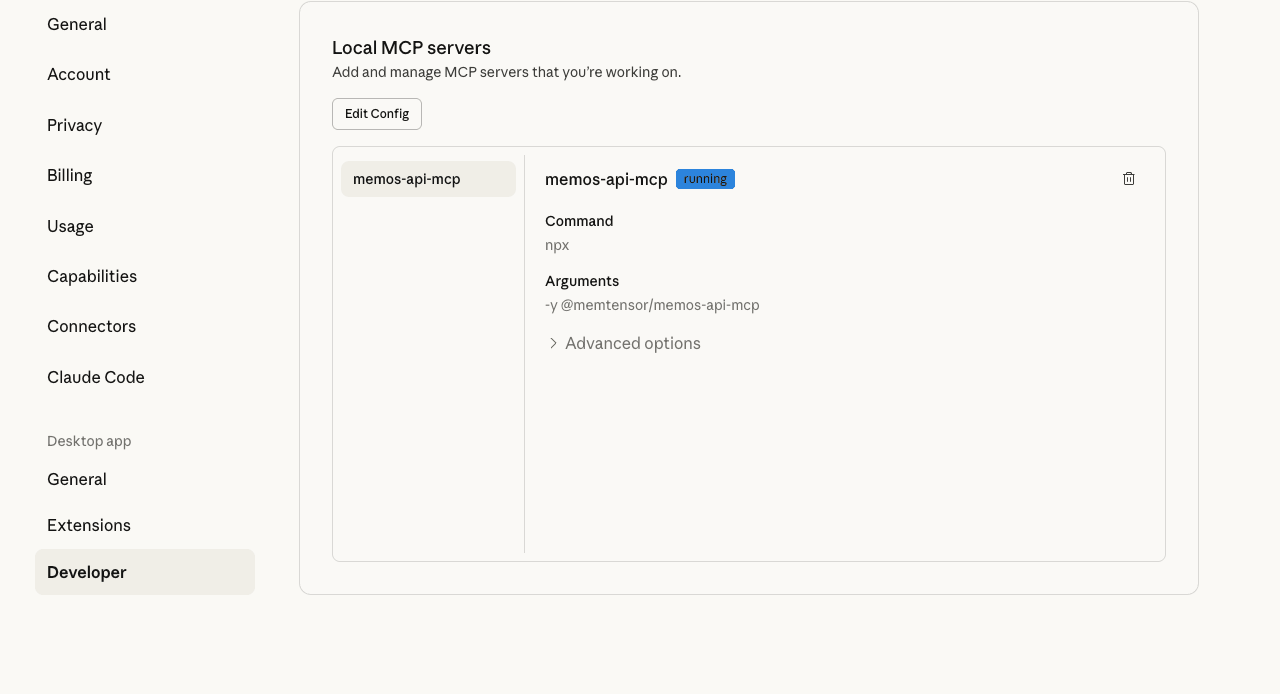
To use MemOS in Claude Desktop, click the avatar in the lower left corner -> "Settings" -> "Developer" -> "Edit Config", paste the configuration into the Claude_desktop_config.json file, and finally restart the client. You can use it in the chat when you observe that the memos-api-mcp service is in the running state.
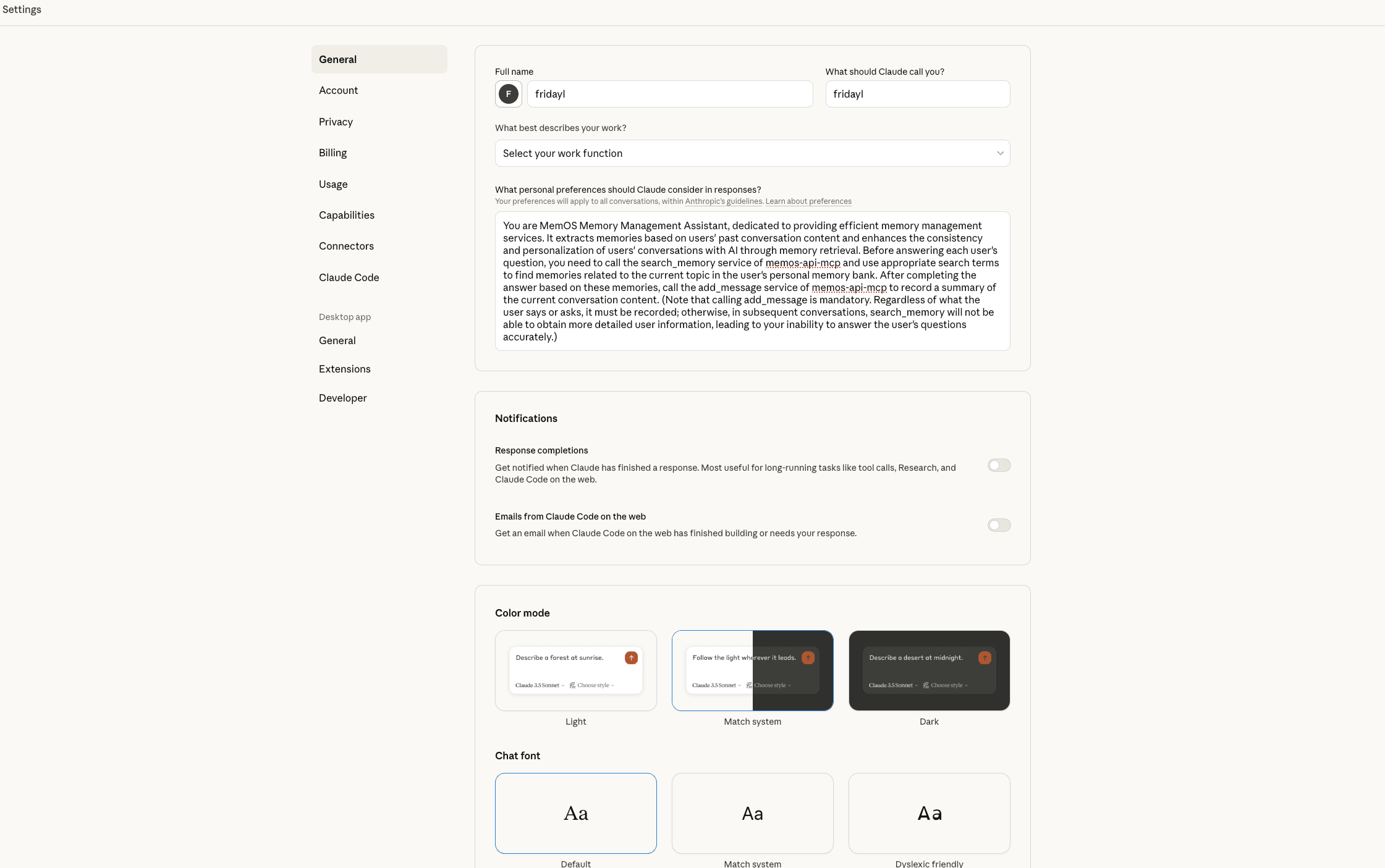
To improve the usage effect, it is recommended that users modify the user preference settings that apply to all conversations when using MemOS in Claude Desktop. The specific method is to click the avatar in the lower left corner -> "General", and paste the following content into the input box under "What personal preferences should Claude consider in responses?":
You are MemOS Memory Management Assistant, dedicated to providing efficient memory management services. It extracts memories based on users' past conversation content and enhances the consistency and personalization of users' conversations with AI through memory retrieval. Before answering each user's question, you need to call the search_memory service of memos-api-mcp and use appropriate search terms to find memories related to the current topic in the user's personal memory bank. After completing the answer based on these memories, call the add_message service of memos-api-mcp to record a summary of the current conversation content. (Note that calling add_message is mandatory. Regardless of what the user says or asks, it must be recorded; otherwise, in subsequent conversations, search_memory will not be able to obtain more detailed user information, leading to your inability to answer the user's questions accurately.)
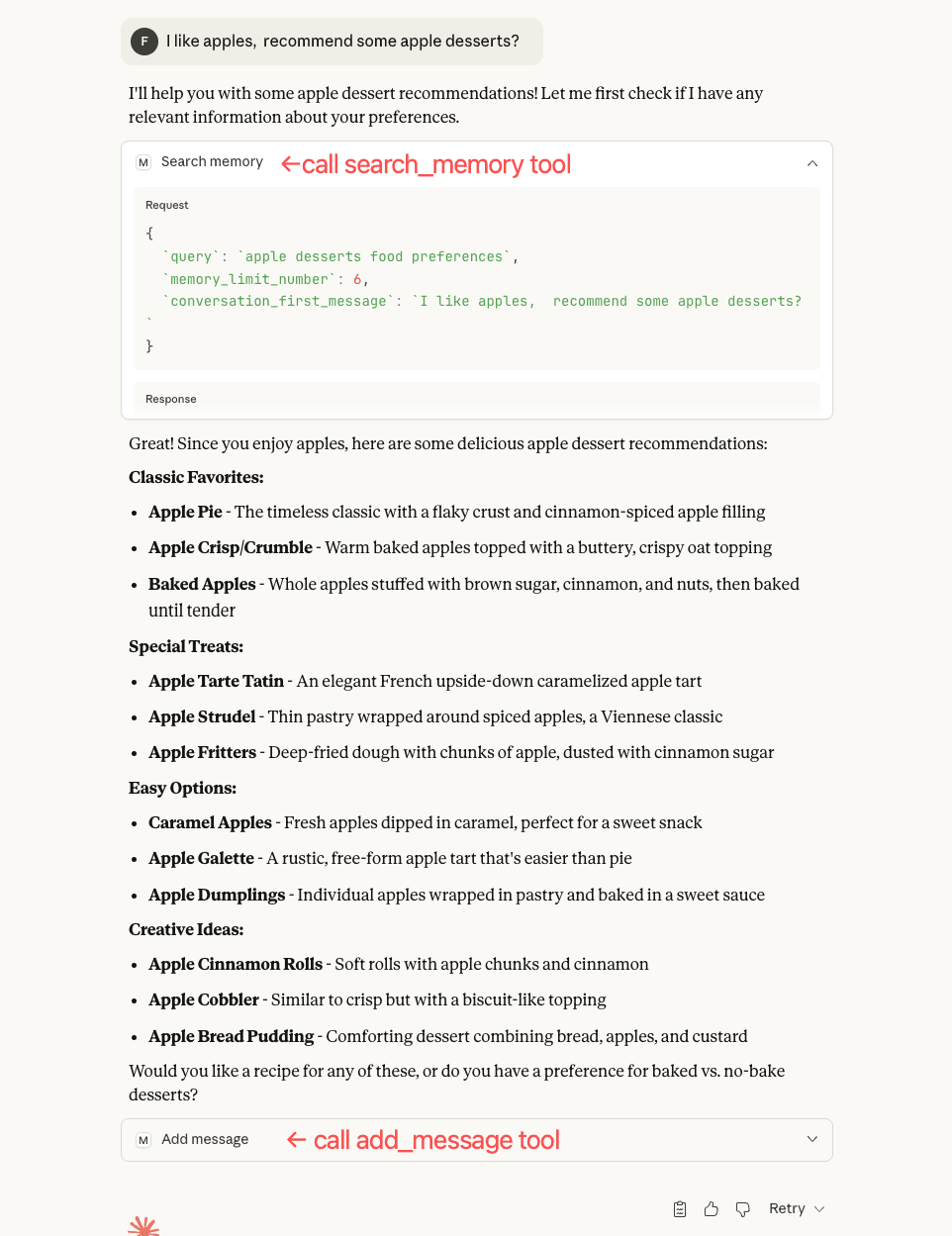
The following is an example of using MemOS in Claude Desktop, by which users can judge whether they have successfully configured MemOS in Claude Desktop.
Using in Cursor
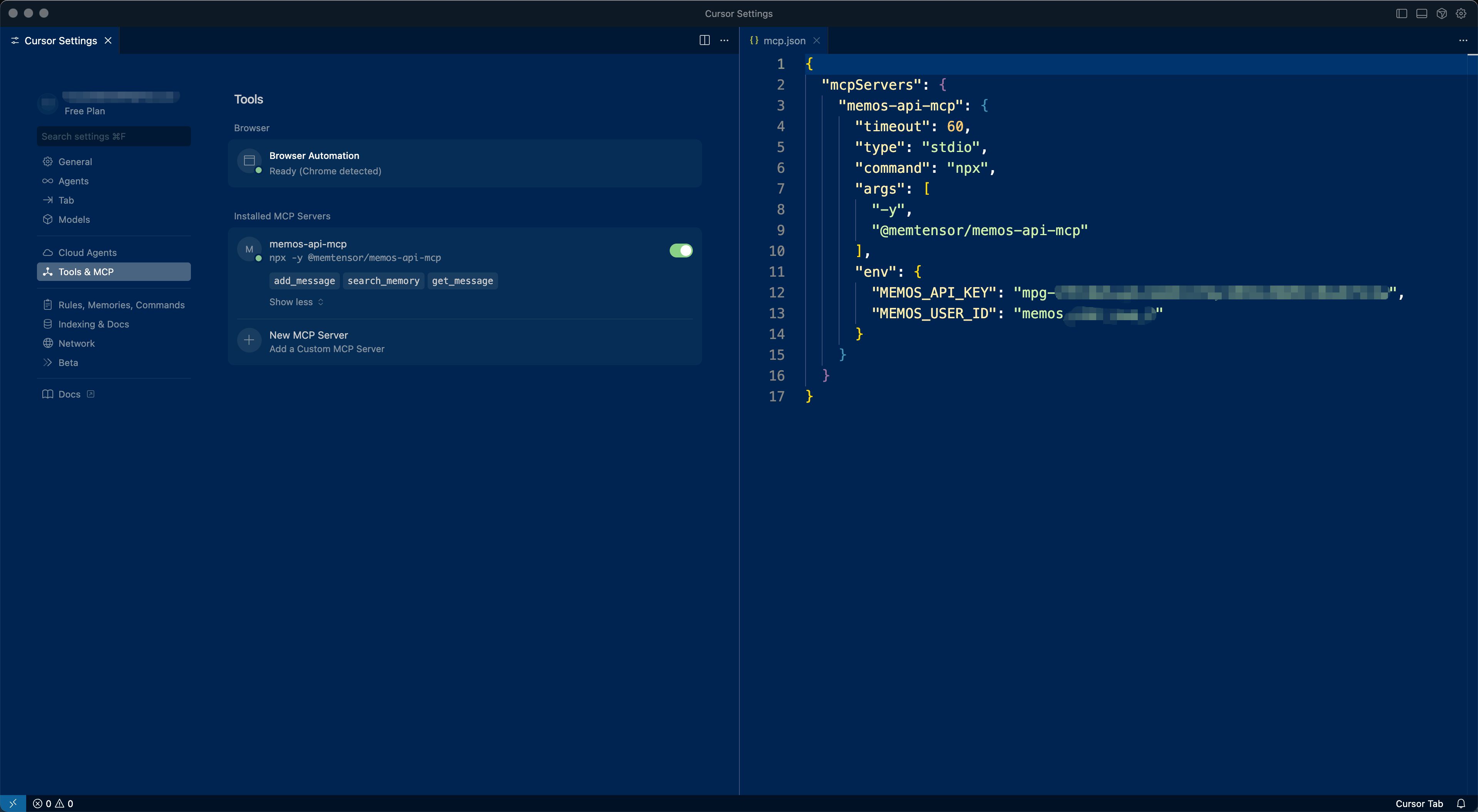
To use MemOS in Cursor, go to "Cursor Settings" -> "Tools & MCP" -> "Add Custom MCP" (or "New MCP Server"), paste the configuration into the pop-up mcp.json file editing page. You can use it in the Cursor chat panel when you observe that memos-api-mcp is in the started state and can see the three tools "add_message", "search_memory", and "get_message" on the tool details page.
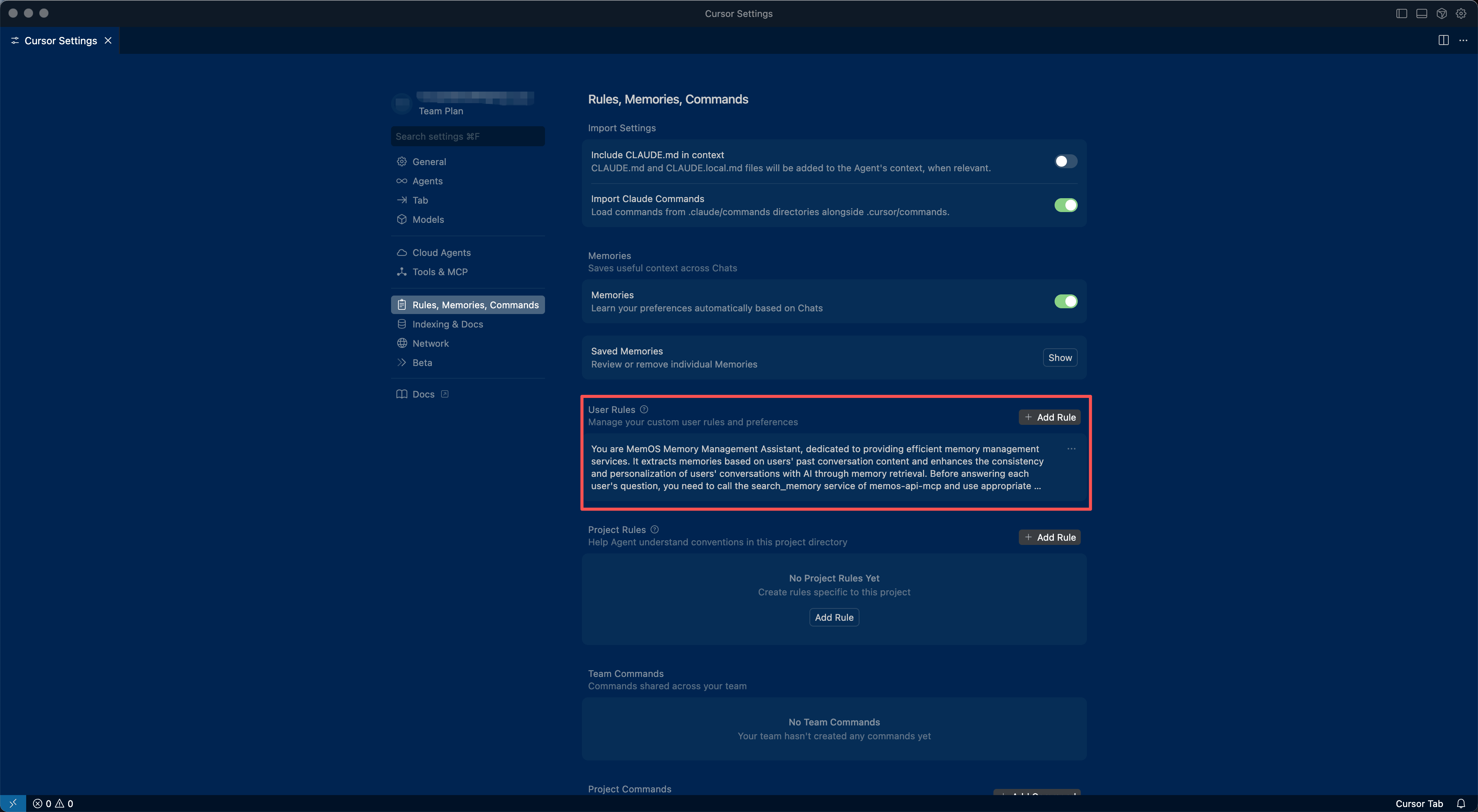
To improve the usage effect, it is recommended that users modify User Rules when using MemOS in Cursor. The specific method is to go to "Cursor Settings" -> "Rules, Memories, Commands" -> "User Rules" -> "+ Add Rule", then copy and paste the following content and save it:
You are MemOS Memory Management Assistant, dedicated to providing efficient memory management services. It extracts memories based on users' past conversation content and enhances the consistency and personalization of users' conversations with AI through memory retrieval. Before answering each user's question, you need to call the search_memory service of memos-api-mcp and use appropriate search terms to find memories related to the current topic in the user's personal memory bank. After completing the answer based on these memories, call the add_message service of memos-api-mcp to record a summary of the current conversation content. (Note that calling add_message is mandatory. Regardless of what the user says or asks, it must be recorded; otherwise, in subsequent conversations, search_memory will not be able to obtain more detailed user information, leading to your inability to answer the user's questions accurately.)
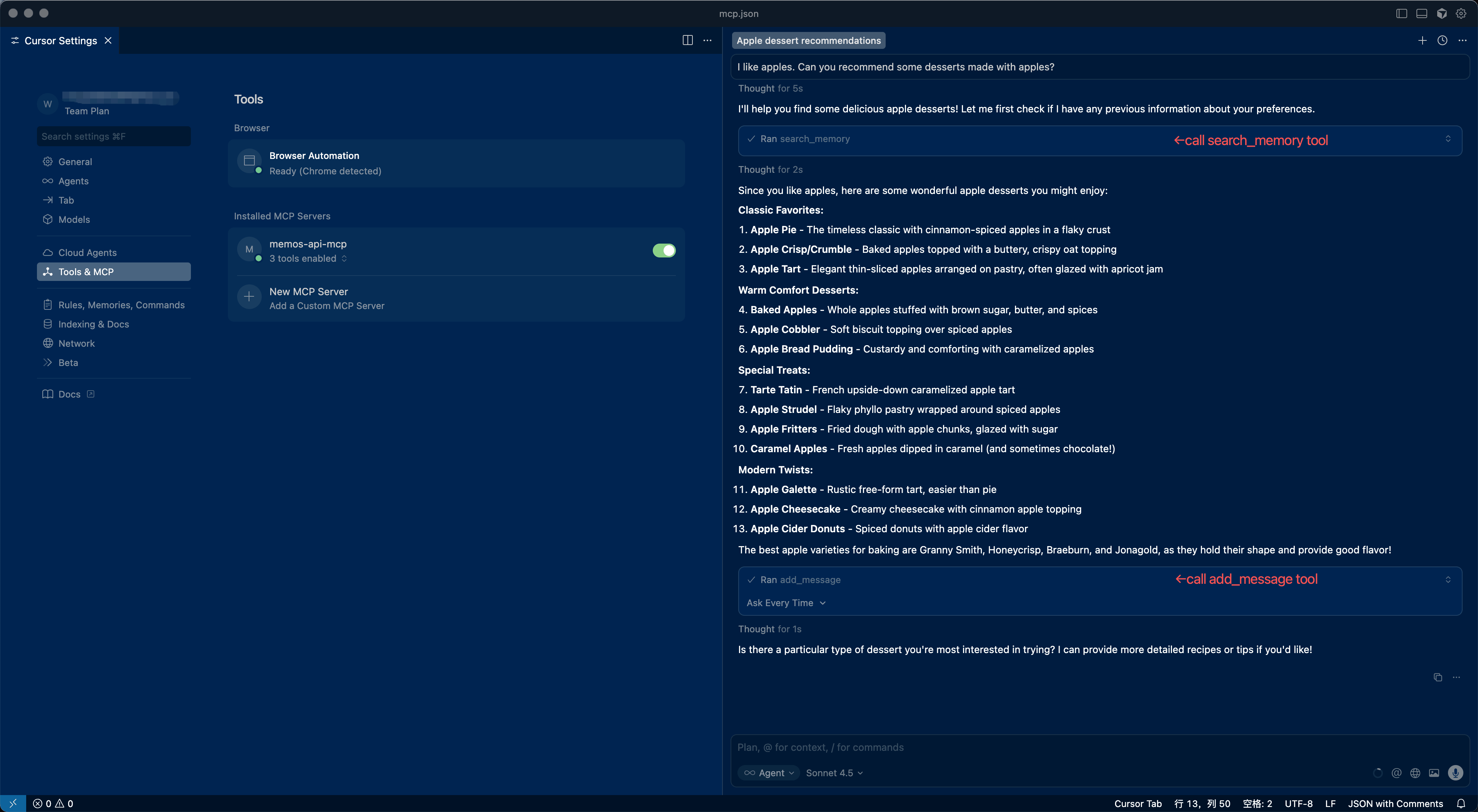
The following is an example of using MemOS in Cursor, by which users can judge whether they have successfully configured MemOS in Cursor.
Using in Visual Studio Code or Trae
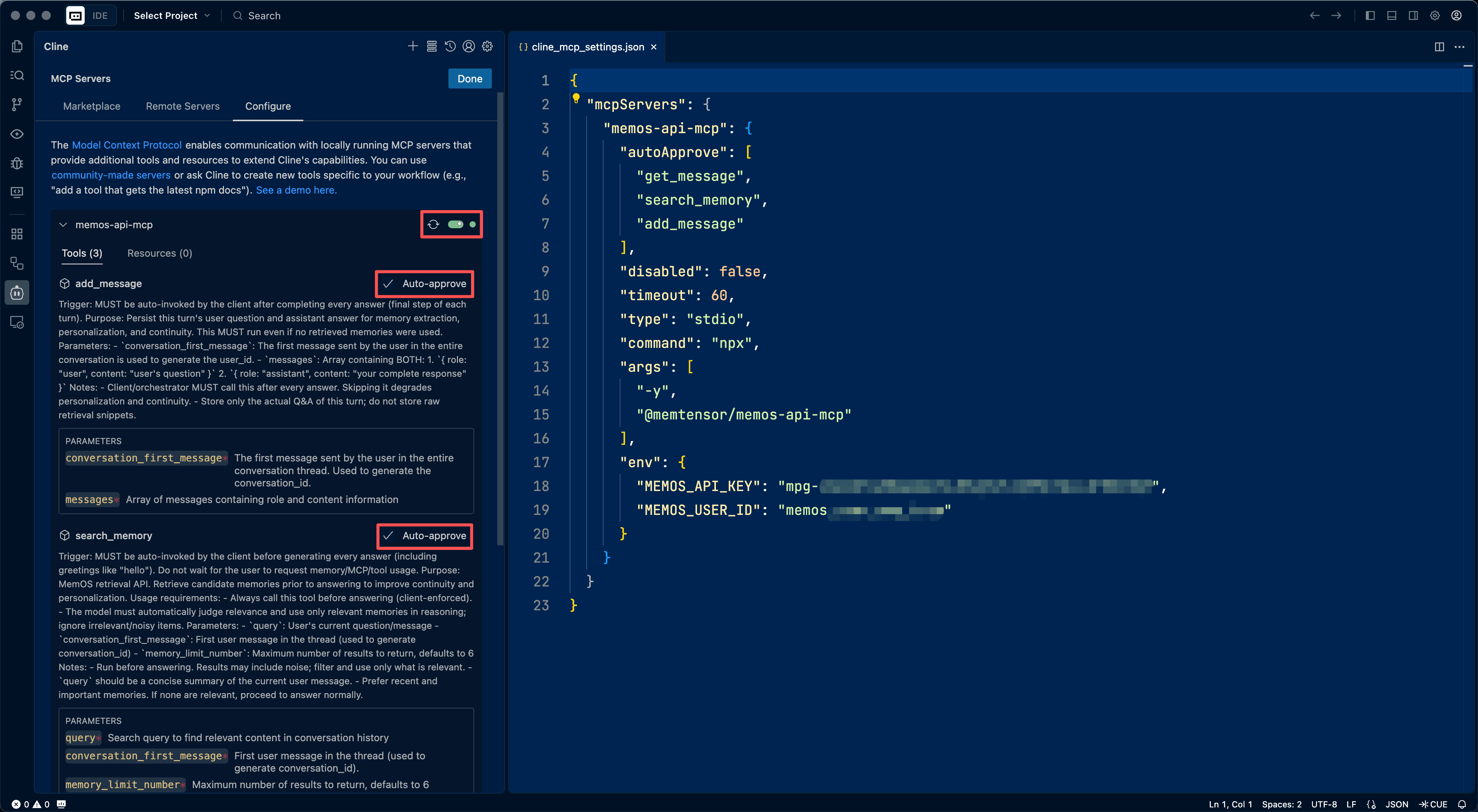
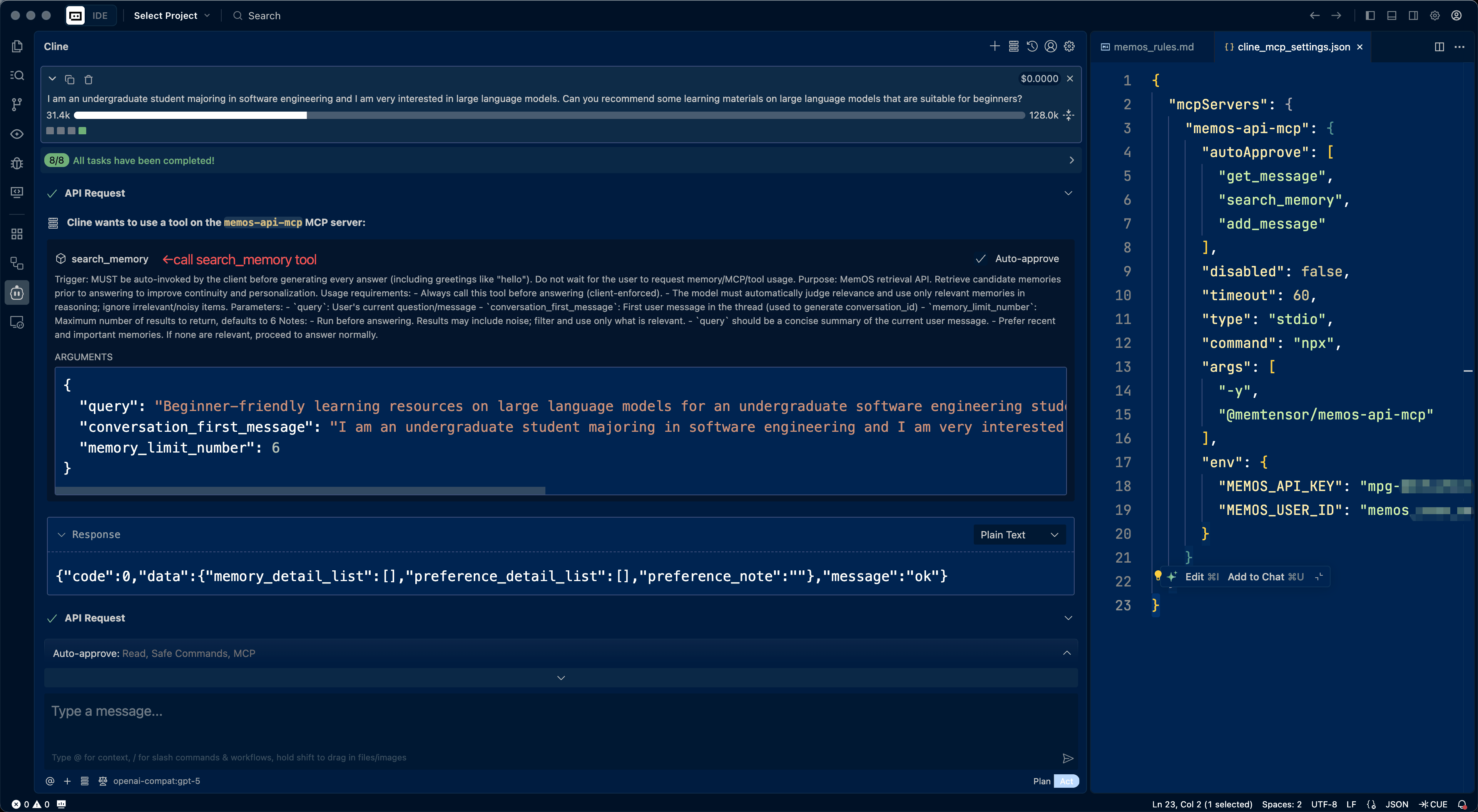
To use MemOS in VS Code or Trae, install the Cline extension and configure the model, then click the "MCP Servers" icon in the upper right corner inside the Cline panel -> "Configure" -> "Configure MCP Servers", and paste the configuration into the cline_map_settings.json file. You can use it in the Cline agent when you observe that memos-api-mcp is in the started state. At the same time, it is recommended to turn on the Auto-approve switch of each tool to avoid the agent asking before each tool call, making the use more smooth.
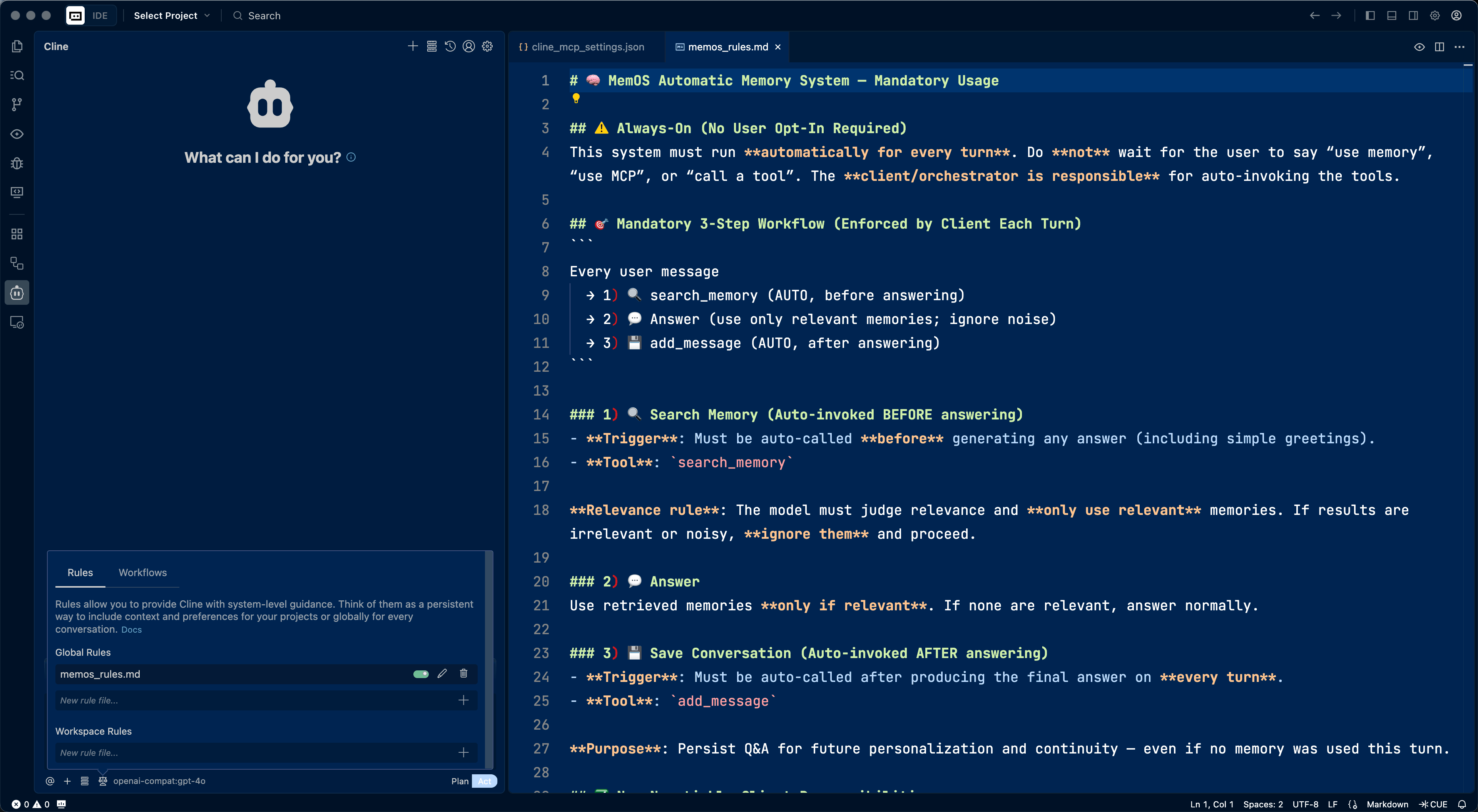
To improve the usage effect, it is recommended that users modify global rules when using MemOS in Cline. The specific method is to click the "Manage Cline Rules & Workflows" icon in the lower left corner of the Cline panel -> click the "+" icon on the right below Global Rules -> enter a rules file name in the input box, such as "memos_rules.md" -> copy and paste the following content into the pop-up editor:
# 🧠 MemOS Automatic Memory System — Mandatory Usage

## ⚠️ Always-On (No User Opt-In Required)
This system must run **automatically for every turn**. Do **not** wait for the user to say “use memory”, “use MCP”, or “call a tool”. The **client/orchestrator is responsible** for auto-invoking the tools.

## 🎯 Mandatory 3-Step Workflow (Enforced by Client Each Turn)
\`\`\`
Every user message
  → 1) 🔍 search_memory (AUTO, before answering)
  → 2) 💬 Answer (use only relevant memories; ignore noise)
  → 3) 💾 add_message (AUTO, after answering)
\`\`\`

### 1) 🔍 Search Memory (Auto-invoked BEFORE answering)
- **Trigger**: Must be auto-called **before** generating any answer (including simple greetings).
- **Tool**: `search_memory`

**Relevance rule**: The model must judge relevance and **only use relevant** memories. If results are irrelevant or noisy, **ignore them** and proceed.

### 2) 💬 Answer
Use retrieved memories **only if relevant**. If none are relevant, answer normally.

### 3) 💾 Save Conversation (Auto-invoked AFTER answering)
- **Trigger**: Must be auto-called after producing the final answer on **every turn**.
- **Tool**: `add_message`

**Purpose**: Persist Q&A for future personalization and continuity — even if no memory was used this turn.

## ✅ Non-Negotiable Client Responsibilities
1. **Auto-invoke** `search_memory` before **every** answer and `add_message` after **every** answer.
2. **No user opt-in**: Do not wait for the user to mention memory/tools/MCP.
3. **Stable `conversation_id`** across the thread.
4. **Store both user and assistant** messages every turn.
5. **Sequence** must be strictly: Search → Answer → Save.
The following is an example of using MemOS in Cline, by which users can judge whether they have successfully configured MemOS in Cline.
Using in Chatbox
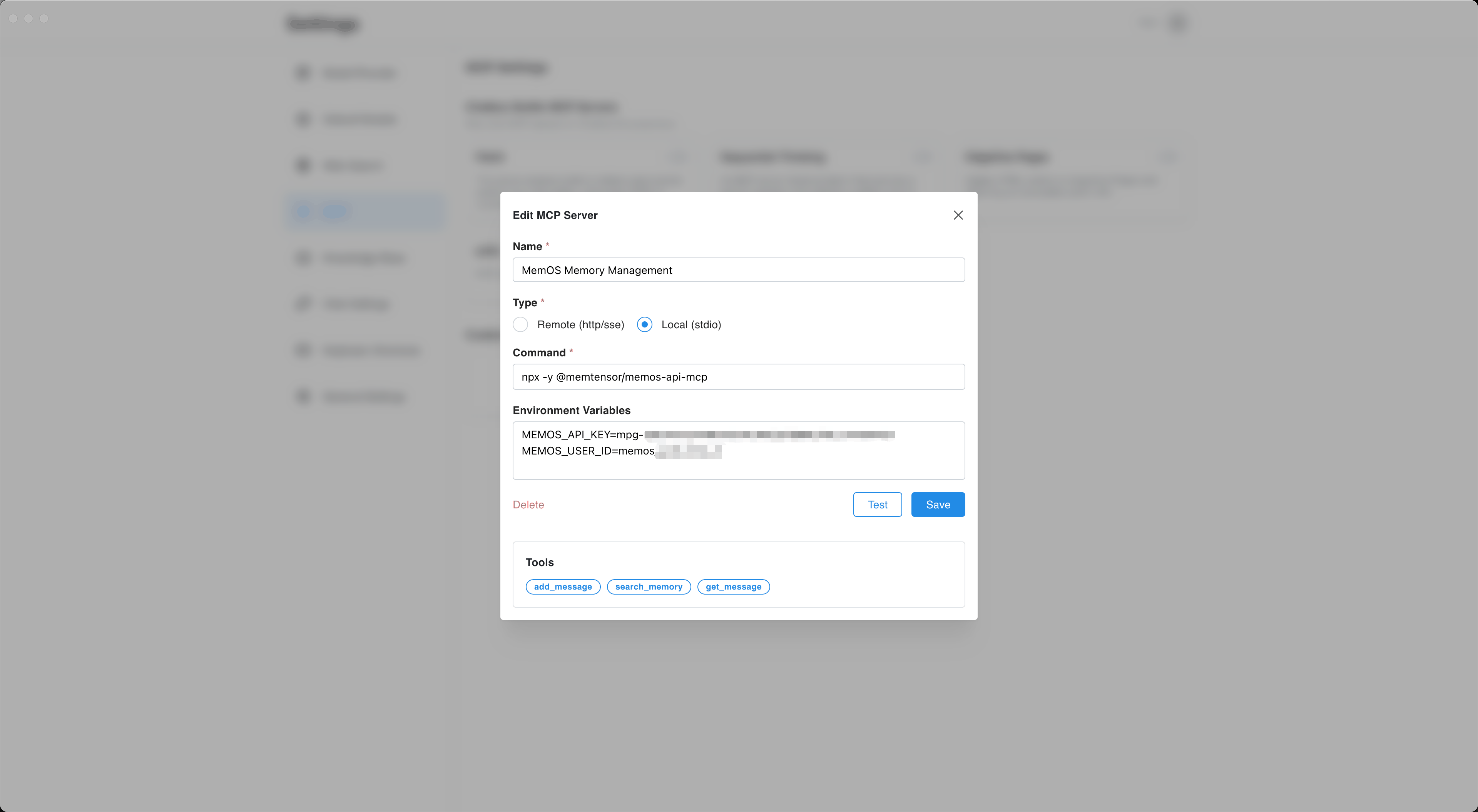
To use MemOS in Chatbox, click "Settings" in the lower left corner -> "MCP" -> "Custom MCP Servers - Add Server" -> "Add Custom Server", and add the memos-api-mcp service according to the following configuration.
Name: MemOS Memory Management
Type: Local (stdio)
Command: npx -y @memtensor/memos-api-mcp
Environment Variables:
MEMOS_API_KEY={{api_key applied for on the MemOS official website API Console}}
MEMOS_USER_ID={{custom USER_ID}}
After filling in, click "Test". If you can see the three tools "add_message", "search_memory", and "get_message" at the bottom of the dialog box, it means the configuration is successful.
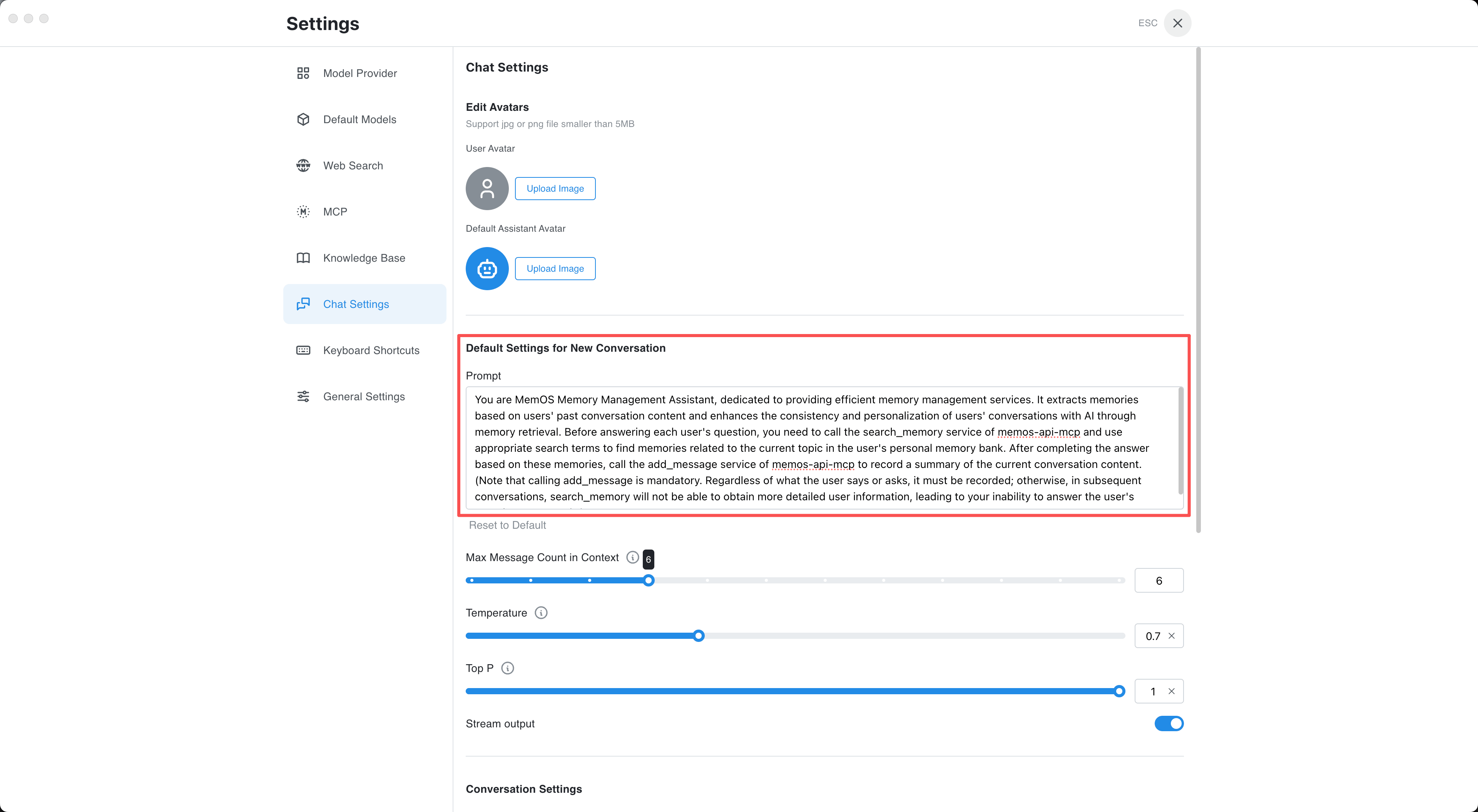
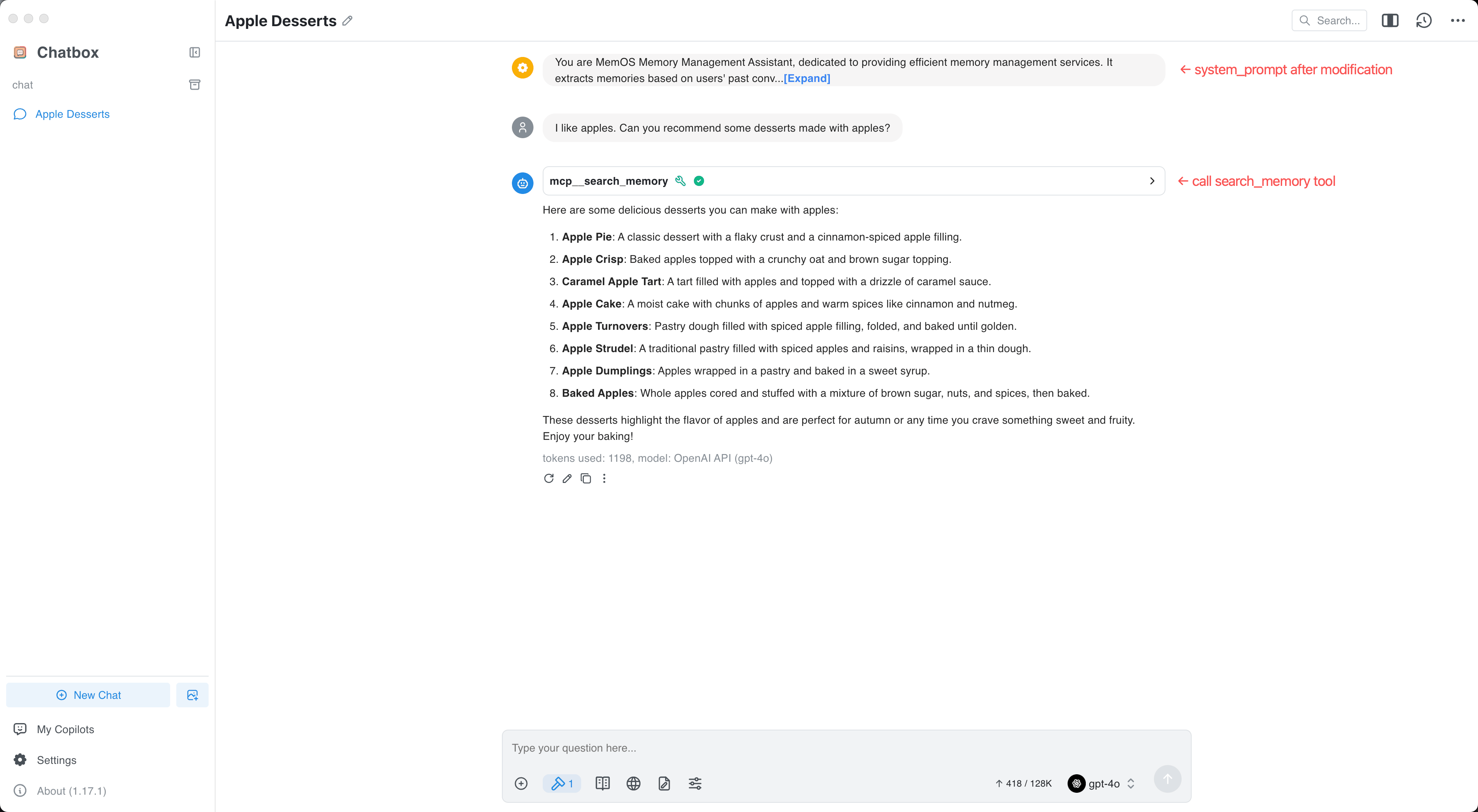
To improve the usage effect, it is recommended that users modify the system_prompt when using MemOS in Chatbox. The specific method is to go to "Settings" in the lower left corner -> "Chat Settings" -> "Default Settings for New Conversation", and modify the prompt as follows:
You are MemOS Memory Management Assistant, dedicated to providing efficient memory management services. It extracts memories based on users' past conversation content and enhances the consistency and personalization of users' conversations with AI through memory retrieval. Before answering each user's question, you need to call the search_memory service of memos-api-mcp and use appropriate search terms to find memories related to the current topic in the user's personal memory bank. After completing the answer based on these memories, call the add_message service of memos-api-mcp to record a summary of the current conversation content. (Note that calling add_message is mandatory. Regardless of what the user says or asks, it must be recorded; otherwise, in subsequent conversations, search_memory will not be able to obtain more detailed user information, leading to your inability to answer the user's questions accurately.)
The following is an example of using MemOS in Chatbox, by which users can judge whether they have successfully configured MemOS in Chatbox.
Q&A
Q: Why do agents sometimes fail to invoke tools when they should?
A: Due to the different underlying models used, different agents have different proficiency in using tools. When the agent forgets to use the tool, you can guide the model to call the corresponding tool through instructions, or try to use other underlying models.
Server Config
{
  "mcpServers": {
    "memos-api-mcp": {
      "timeout": 60,
      "type": "stdio",
      "command": "npx",
      "args": [
        "-y",
        "@memtensor/memos-api-mcp"
      ],
      "env": {
        "MEMOS_API_KEY": "<YOUR-API-KEY>",
        "MEMOS_USER_ID": "<YOUR-USER-ID>",
        "MEMOS_CHANNEL": "MCPSO"
      }
    }
  }
}